
Introduction
Roku offers a seamless way to bring a world of streaming to your television. However, to unlock its full potential, ensuring your Roku remote is properly synced is crucial. This guide will take you through easy and straightforward steps to get your Roku remote synced with your device so that you can enjoy uninterrupted entertainment. Let’s jump into the process of syncing your remote for a smooth streaming experience.
Understanding the Types of Roku Remotes
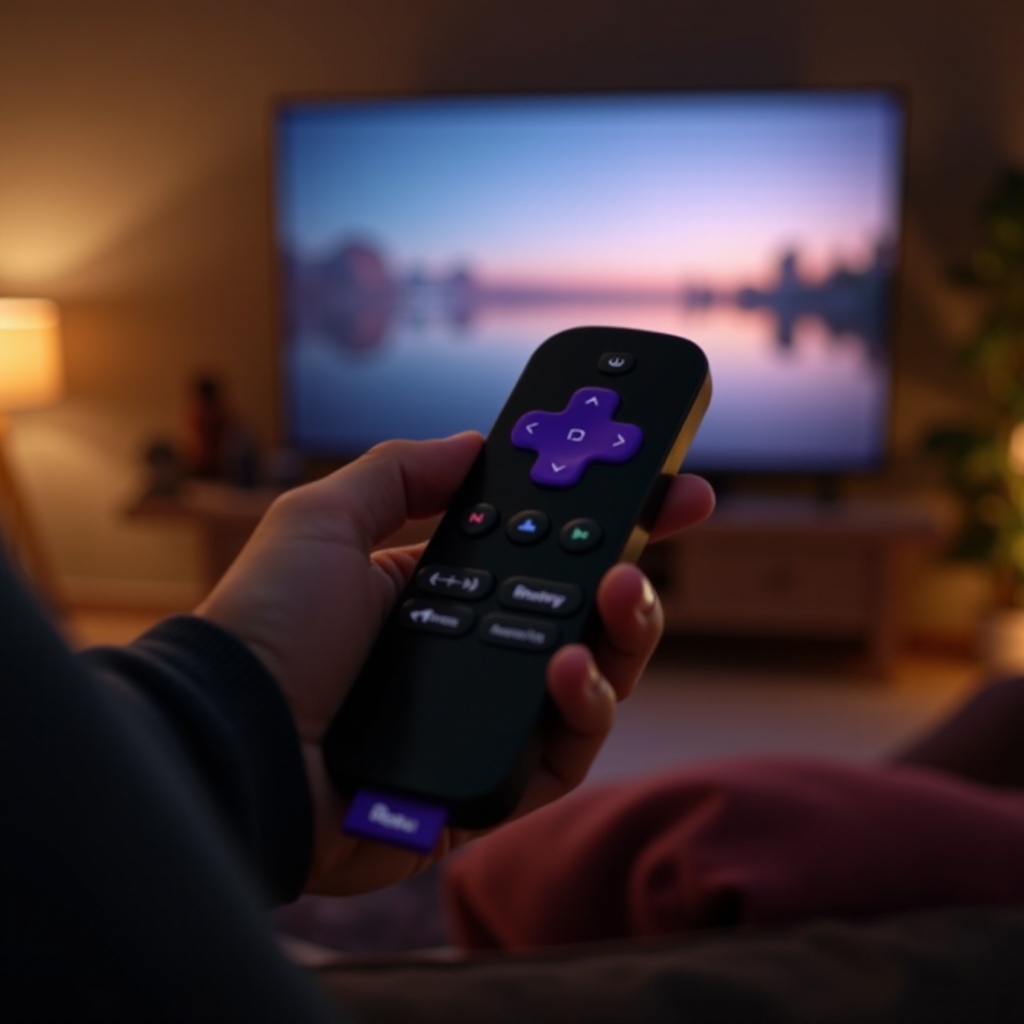
Before starting the syncing process, it’s vital to identify your Roku remote type. Primarily, there are two types: Standard IR Remote and Enhanced Remote with Voice Control. This knowledge will make syncing easier and prevent possible complications.
- Standard IR Remote: Utilizes infrared light to communicate. It needs a direct line of sight to function effectively.
- Enhanced Remote with Voice Control: Uses Bluetooth technology and doesn’t need direct sight. It offers the added convenience of voice commands.
Knowing which remote you have ensures you follow the correct syncing procedure, avoiding confusion and errors.
Preparing Your Devices for Syncing
Now that you’re aware of your remote type, preparation is essential. These steps will set your devices up, ensuring a successful connection:
- Verifying Remote Compatibility: Confirm your remote is compatible with your Roku system. Most modern remotes are versatile, but it’s wise to double-check.
- Ensuring TV and Roku Device are Ready: Turn on your TV and set it to the correct input channel for your Roku. Also, make sure your Roku player is switched on and online.
These preparations provide a solid foundation, smoothing the way for successful remote syncing.
Step-by-Step Guide to Syncing Your Roku Remote
With everything set, we can proceed to sync the remote. Follow these tailored steps depending on your remote type:
- Syncing a Standard IR Remote:
- Insert new batteries into the remote.
- Aim the remote directly at the Roku player.
-
Test with any button to see if the device responds.
-
Syncing an Enhanced Voice Remote:
- Open the battery compartment to insert fresh batteries.
- Hold down the pairing button inside the compartment until the front light starts flashing.
- On your Roku device, navigate through ‘Settings’ > ‘Remotes & Devices’ > ‘Remote’ > ‘Pair Remote’.
Following these instructions will ensure your remote is linked correctly to your Roku player, ready for use.
Troubleshooting Common Remote Syncing Issues
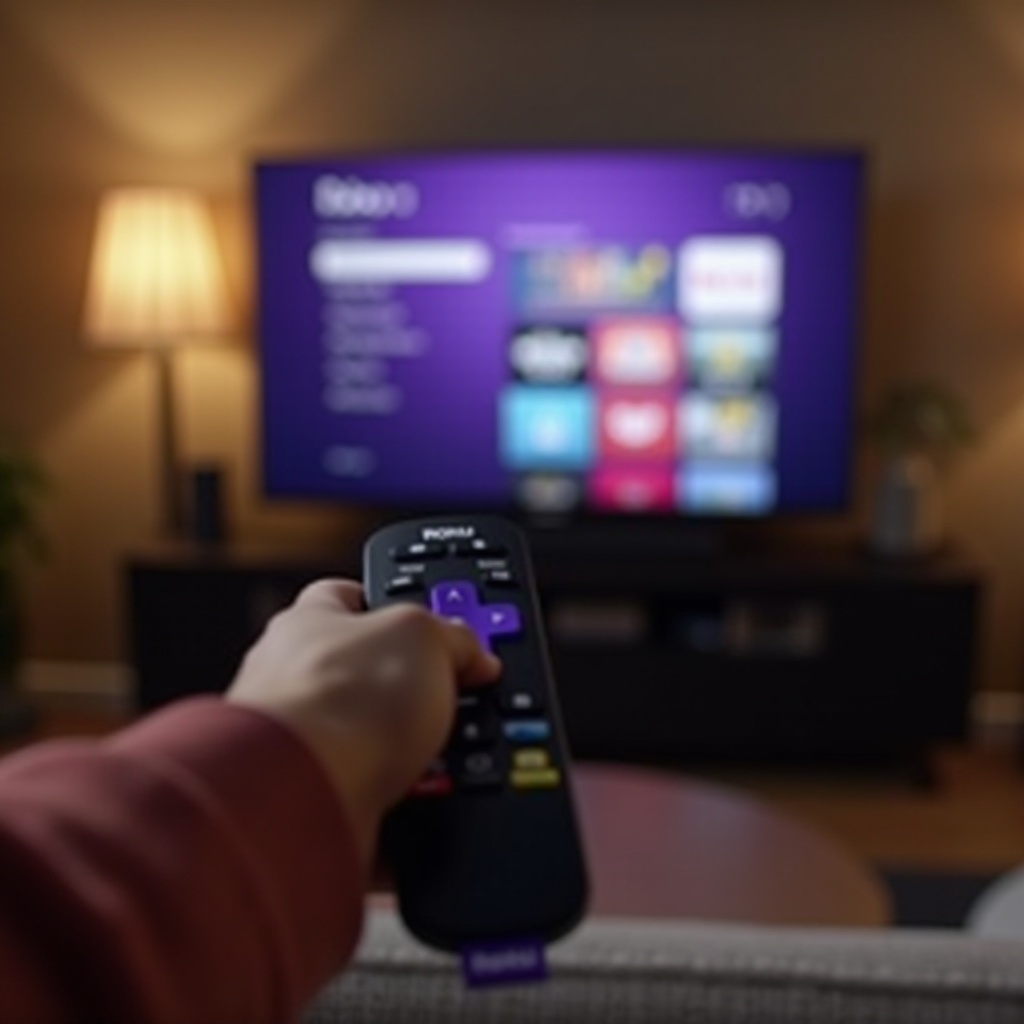
Even with precise steps, issues might arise. Here’s how to troubleshoot effectively:
- Checking Battery and Power Status: Always confirm that batteries are installed correctly and are fully charged.
- Resolving Connectivity Problems: Move closer to the Roku player, and ensure there’s no obstruction between the remote and player, particularly for IR remotes.
- Performing a Remote Re-Pair Process: Unpair your remote via the Roku settings, then follow the syncing steps to reconnect.
These solutions address most common issues, helping maintain your remote’s functionality.
Advanced Tips for Better Roku Remote Usage
A perfectly synced remote opens the door to more advanced features:
- Using the Roku Mobile App as a Backup: The Roku app can substitute for a physical remote. Available on iOS and Android, it offers comprehensive control options.
- Customizing Your Roku Remote Settings: Modify settings for button shortcuts and voice controls for a tailored user experience.
Exploring these features enhances your command over the Roku system, delivering a personalized streaming adventure.
Conclusion
Syncing your Roku remote is a simple yet crucial step to unlocking superior entertainment. By following these guided steps, you can ensure seamless operations, making your viewing experience enjoyable and hassle-free. Embrace the convenience of a well-connected system, and dive headfirst into the vast ocean of streaming content that Roku has to offer.
Frequently Asked Questions
How can I tell if my Roku remote is synced?
Press any button on the remote and look for a response from the Roku device, such as a screen flash or a sound, indicating successful syncing.
What should I do if my Roku remote stops working suddenly?
Replace the batteries and check the remote’s functionality. If it still doesn’t work, try re-pairing it with your Roku device.
Can I use my smartphone as a Roku remote permanently?
Yes, using the Roku mobile app, available for iOS and Android, you can operate your Roku device without the physical remote.