
Introduction
Closed captions are an integral feature for many users, offering access to on-screen dialogue and audio cues. However, in certain scenarios, you might prefer to watch content without them for a cleaner screen and better immersion. Whether you’re using an Apple TV 4K, HD, or an older model, disabling closed captions is simple and straightforward. This guide will take you through the necessary steps, troubleshooting tips, and ways to customize captions to suit your needs. Let’s enhance your Apple TV experience with these easy adjustments.
Understanding Closed Captions on Apple TV
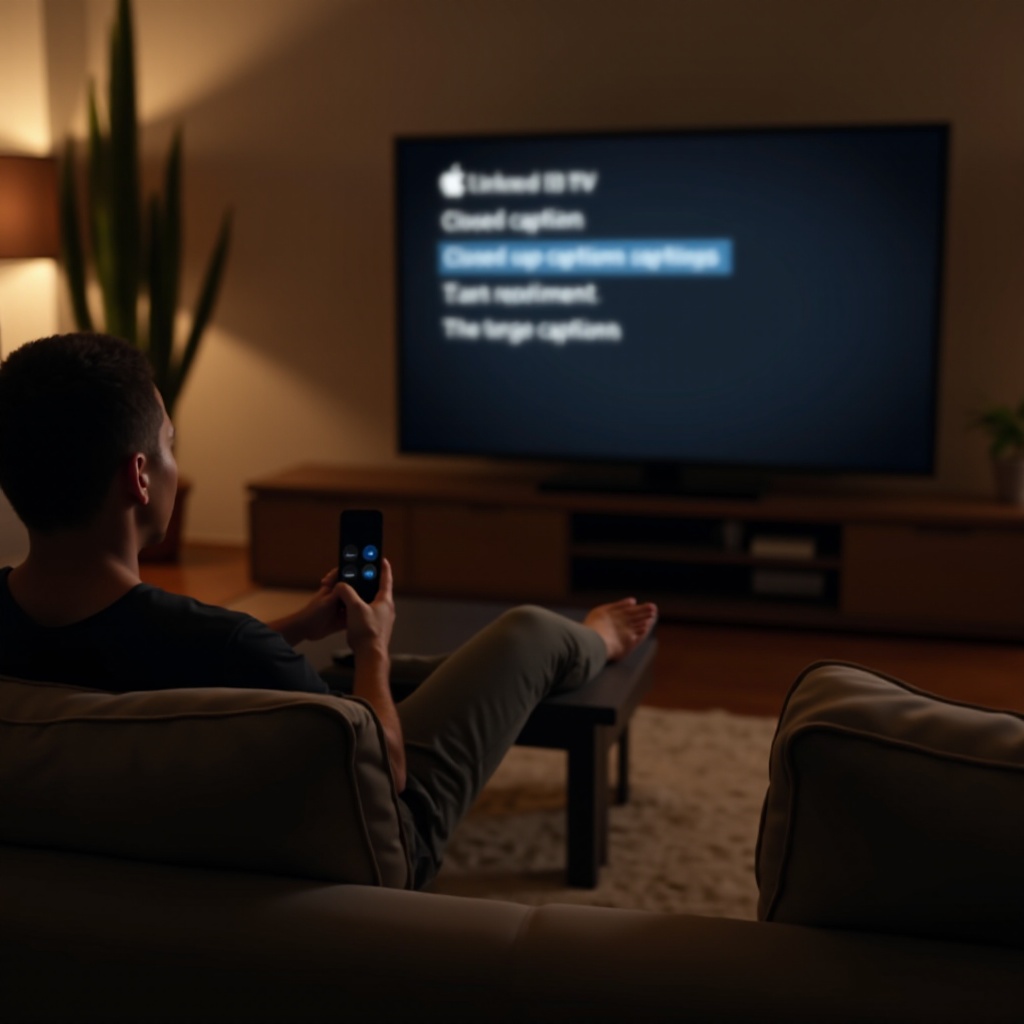
Apple TV provides comprehensive accessibility features, with closed captions being among the most commonly used. They are crucial for individuals who are hard of hearing or for viewers who enjoy watching content in silence. Sometimes, closed captions can clutter the screen, making it challenging to enjoy the content visually. Knowing how to switch them off allows you to tailor your viewing experience to your personal preferences.
Familiarizing yourself with the Apple TV settings is beneficial, not just for managing closed captions, but also for exploring a range of other accessibility features. This knowledge will aid in making all adjustments smoothly.
Step-by-Step Guide: Turning Off Closed Captions on Apple TV
Disabling closed captions on your Apple TV can be done quickly through the settings menu. Here’s a breakdown of how to do it based on your device version:
For Apple TV 4K and Apple TV HD:
- Open ‘Settings’ from your home screen.
- Select ‘Accessibility.’
- Navigate to ‘Subtitles and Captioning.’
- Switch off the ‘Closed Captions’ setting.
For Older Apple TV Models:
- Access the main menu and select ‘Settings.’
- Choose ‘General,’ then ‘Subtitles and Captioning.’
- Toggle the ‘Closed Captions’ option to off.
After following these steps, your Apple TV should no longer display closed captions unless you choose otherwise.
Troubleshooting Common Closed Caption Issues
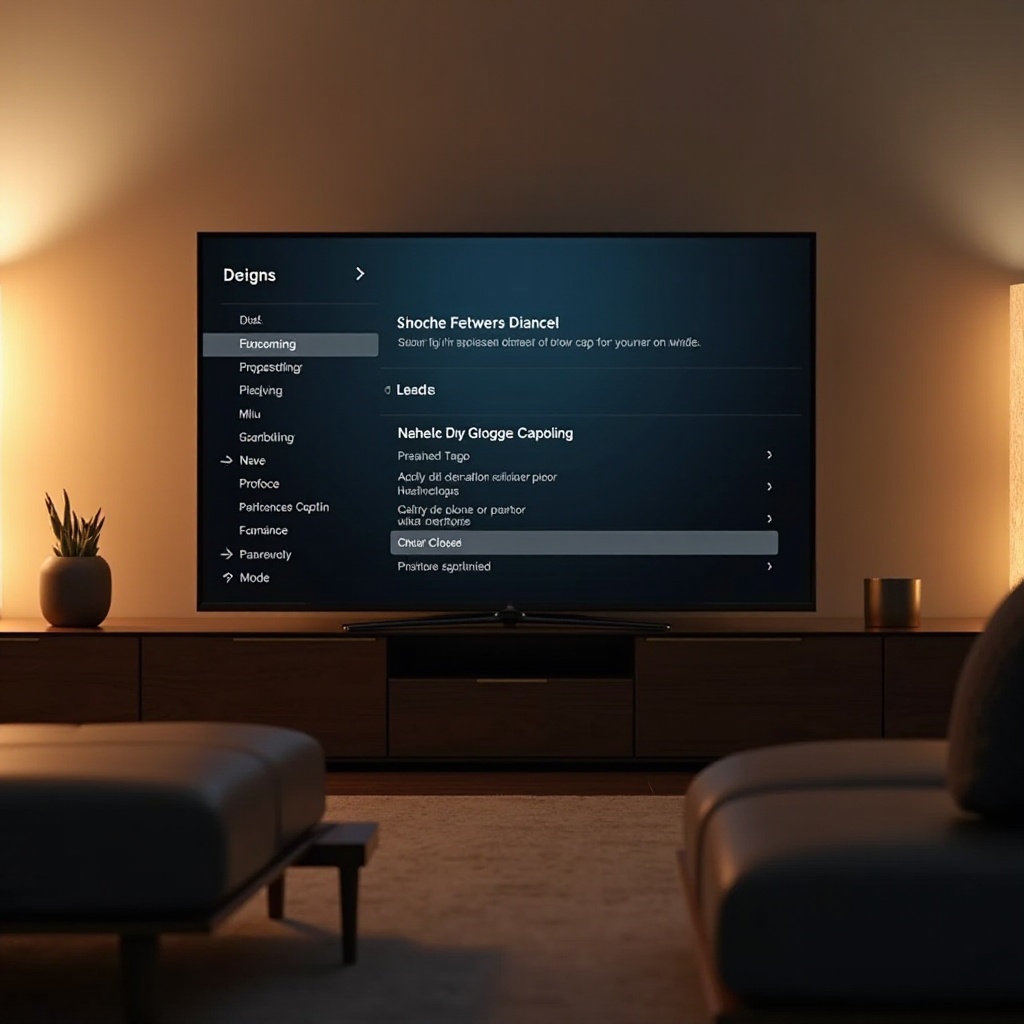
Occasionally, users might face issues where closed captions do not turn off or are out of sync. Here’s how to resolve these common problems:
Closed Captions Not Turning Off
- Restart your Apple TV to reset any temporary glitches.
- Check for software updates by going to ‘Settings > System > Software Updates.’
- If persistent, reset all settings to default by navigating to ‘Settings > System > Reset.’
Sync Problems with Captions
- Ensure the content source itself isn’t setting captions by default.
- Set the caption style to default to correct any sync issues.
Addressing these issues ensures smoother operation of your TV, leaving you free to adjust captions without hassle.
Customizing Closed Caption Settings
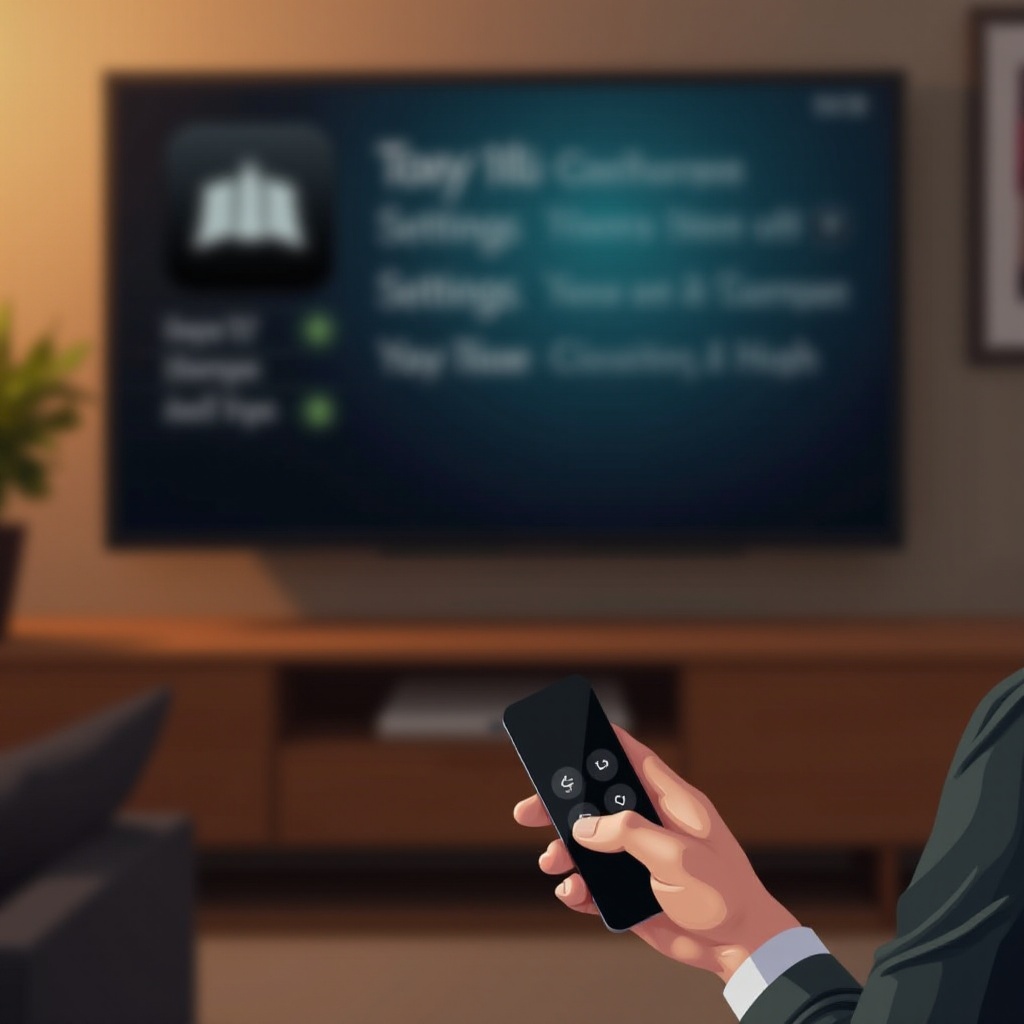
Customizing closed captions improves the legibility and aesthetic experience when watching content. Here’s how you can personalize these settings:
Changing Caption Styles
- Navigate to ‘Settings > Accessibility > Subtitles and Captioning.’
- Select ‘Style’ and browse the fonts, colors, and sizes available.
- Preview and select the style that best suits your preference.
Customizing Caption Font and Size
- Within the ‘Style’ menu, adjust the font type and size for optimal readability.
- Experiment with different backgrounds for better contrast.
By customizing these settings, you ensure captions do not distract from important on-screen moments or visuals.
Exploring Additional Accessibility Features
Apple TV equips users with various tools to ensure accessibility for all. Beyond closed captions, consider these features:
- VoiceOver: Enables an advanced screen reader for navigating the interface without viewing the screen.
- Zoom: Provides screen magnification to enhance readability.
- Bold Text: Improves text clarity for on-screen menus and settings.
Understanding and using these features can further improve navigation and usability, making your Apple TV experience both user-friendly and accessible to everyone in your household.
Benefits of Managing Closed Captions on Apple TV
Managing closed captions effectively offers numerous benefits that enhance your viewing:
- Clear Screen: Eliminates potential distractions for a cleaner viewing experience.
- Better Readability: Adjusting styles ensures captions are easy to read without obtrusive placements.
- Control: Having flexibility over when captions appear increases personalization.
These steps help tailor your Apple TV setup, offering an optimum balance between accessible content and enjoyable visuals.
Conclusion
Effectively managing closed captions on your Apple TV enhances the flexibility and joy of your viewing experience. Whether customizing their appearance or disabling them entirely, Apple TV makes it simple to adjust settings according to your needs, allowing for a seamless and personalized interaction with your content.
Frequently Asked Questions
How do I turn off closed captions on Apple TV for specific apps?
Navigate to each app’s settings as many apps allow toggling captions independently from the system.
Can I change the appearance of closed captions on my Apple TV?
Yes, navigate to ‘Settings > Accessibility > Subtitles and Captioning’ and choose ‘Style’ to customize fonts and colors.
What should I do if closed captions keep turning on automatically?
Check the video source’s settings to ensure captions are disabled and update Apple TV software if needed.