
Introduction
Changing your MacBook’s computer name is a simple process that adds clarity to your device management, especially useful if you use multiple Apple products. Understanding how to rename your MacBook helps personalize your user experience and streamline device identification in networked environments.
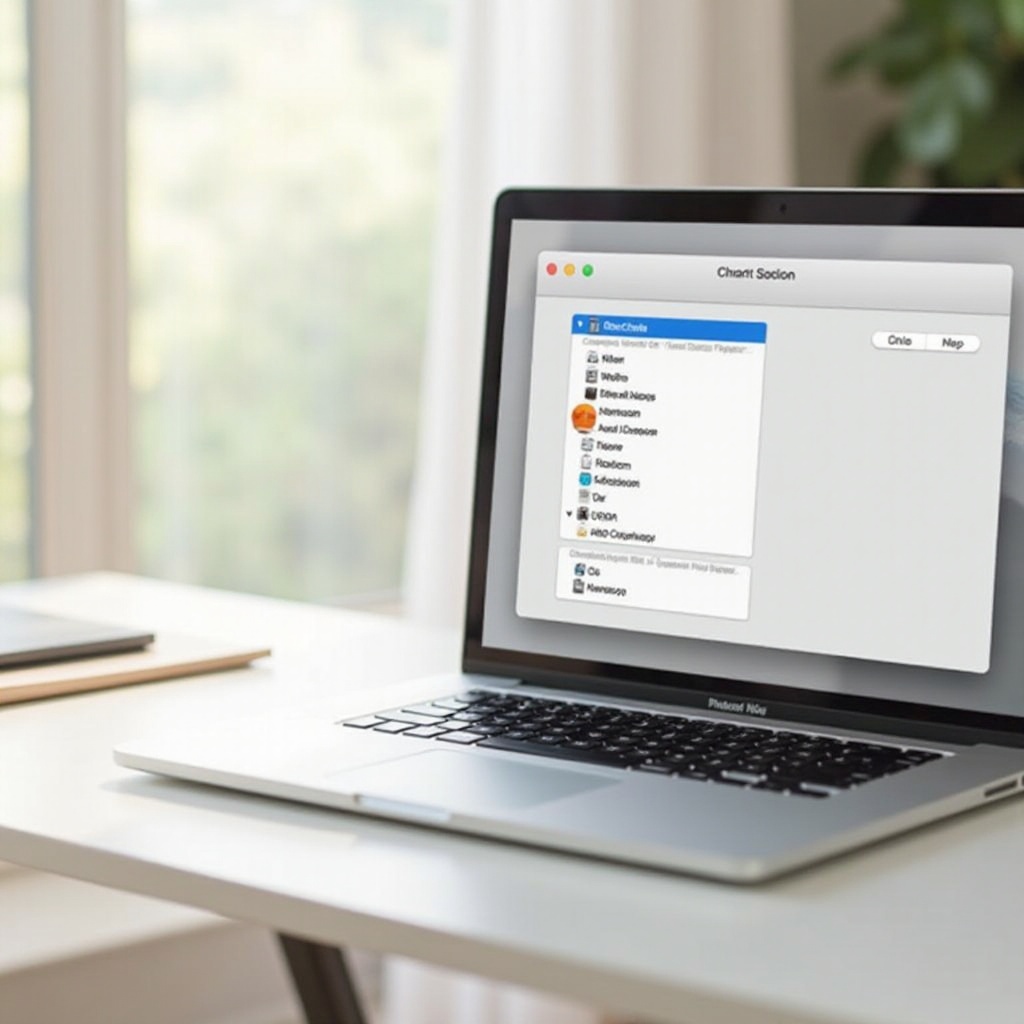
Understanding the Importance of Your MacBook’s Computer Name
The computer name of your MacBook is more than a label; it’s a crucial identifier within macOS and your networking environment. This name appears whenever you share files, and it helps distinguish between devices when connecting via AirDrop or other Apple services. Without a unique name, managing devices in a multi-device setup can become confusing, reducing productivity and personal organization.
Knowing the importance of your MacBook’s computer name can help guide how you choose to modify it, ensuring efficiency and simplicity in personal and professional environments.
Preparing to Change Your Computer Name
Prepping your MacBook for a name change involves ensuring you have the necessary access rights and safeguarding your current settings.
- Checking for Administrative Access
To change your computer name, you’ll need administrative privileges on your MacBook. You can verify your access by attempting other system changes or logging into your administrator account.
- Backing Up Important Settings Before Change
While renaming your MacBook is typically hassle-free, it’s always prudent to create a backup. Use Time Machine or another backup service to save your current configuration, acting as a safety net against unforeseen technical issues.
Step-by-Step Guide to Changing Your MacBook’s Computer Name
Proceed with these instructions to effortlessly change the name of your MacBook:
- Accessing System Preferences
- Click on the Apple logo located at the top-left corner of the screen.
- Select ‘System Preferences’ from the dropdown.
-
This window is the gateway to configuring your MacBook’s settings.
-
Navigating to the Sharing Panel
- Within ‘System Preferences’, click on ‘Sharing’.
-
In this panel, you will see various settings related to network sharing.
-
Updating the Computer Name
- Look for the ‘Computer Name’ field.
- Click to edit and type in your new computer name.
- It’s best to select a name that’s distinct and easily recognizable.
- Close the window to save your changes automatically.
This straightforward process ensures that your new MacBook name is reflected across all relevant applications and network settings, enhancing personal use.
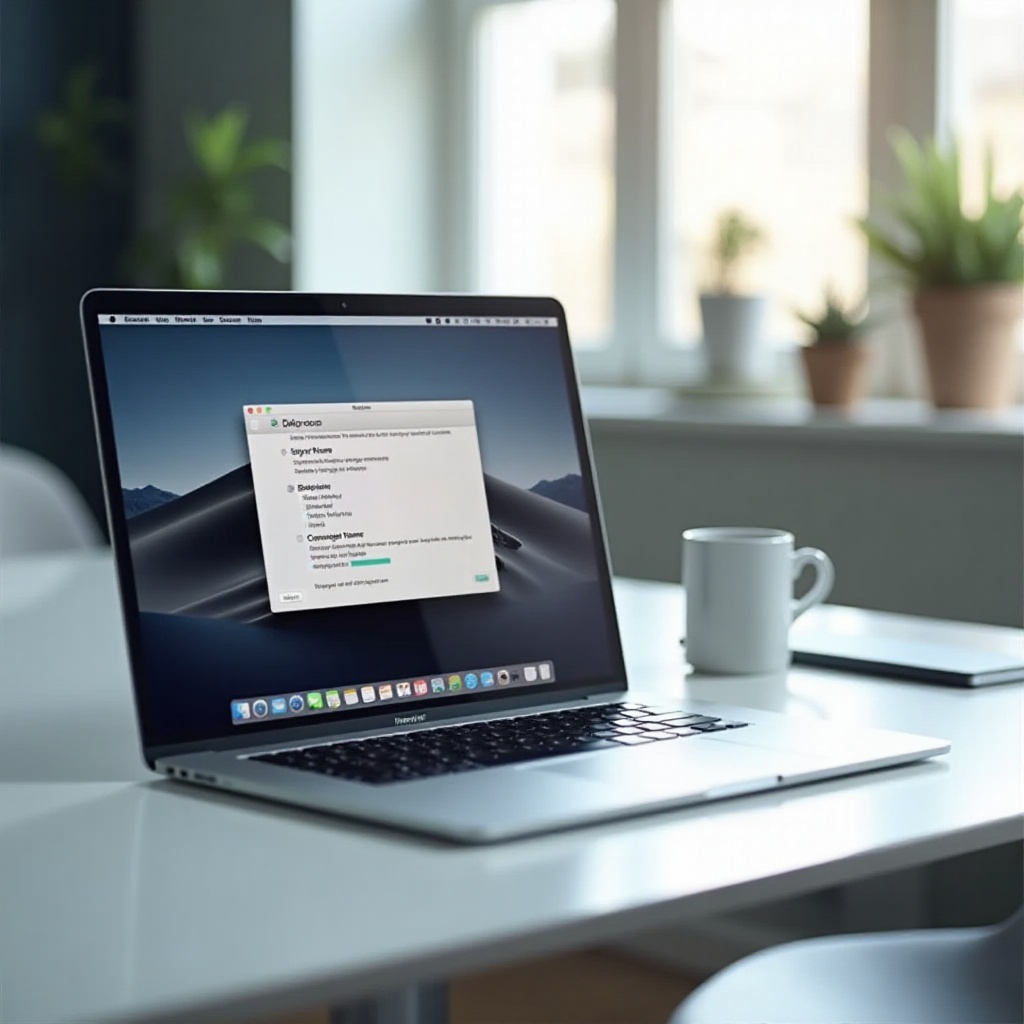
Verifying and Applying the New Computer Name
After you’ve updated your MacBook’s name, verifying that changes took effect is critical.
- Open Finder and check that the new name is showing at the top of your sidebar.
- Confirm the new name appears within network settings and compatible sharing applications.
- Restart your MacBook to make sure the changes permeate through your device’s ecosystem.
These steps ensure your adjustment is recognized by each connected service, avoiding any network disruptions.
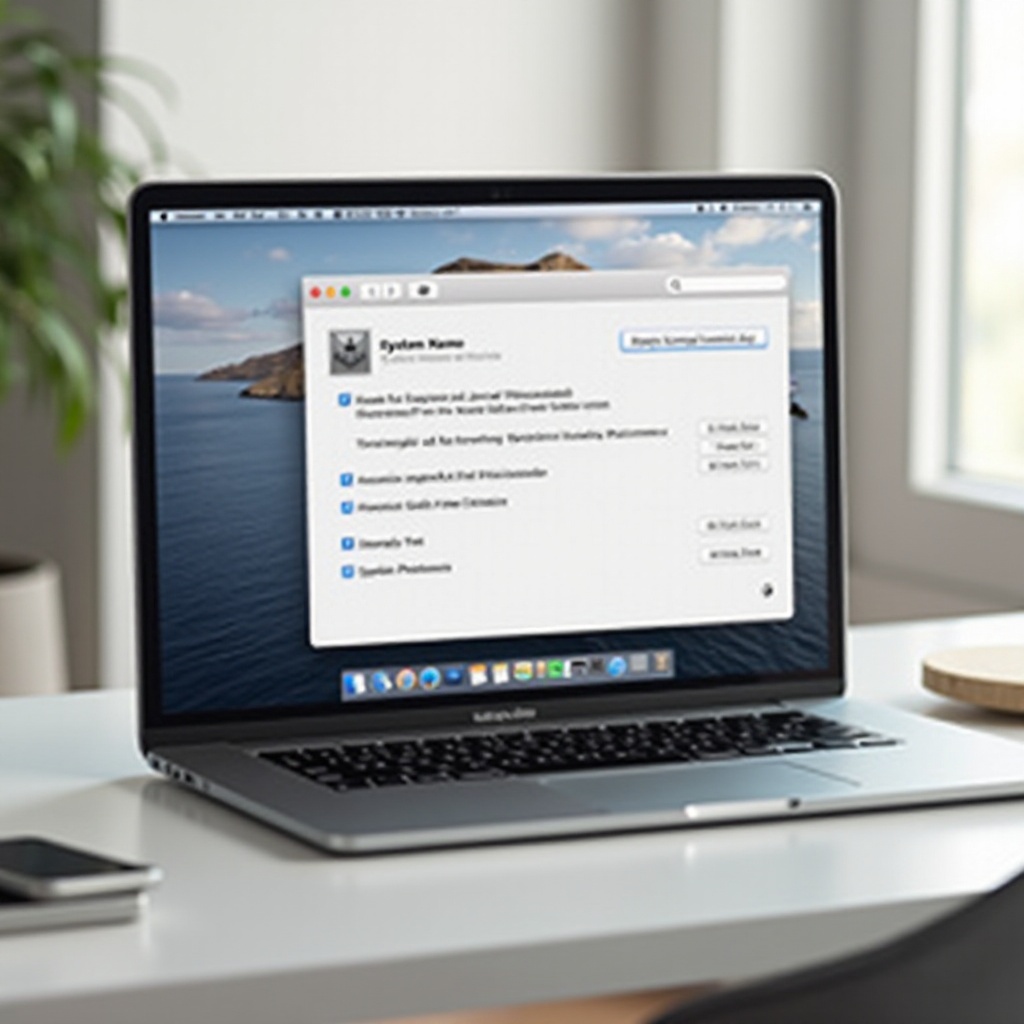
Troubleshooting Common Issues
Occasionally, difficulties may arise when altering your MacBook’s computer name. Here are some solutions:
- Ensuring Changes Are Synchronized Across Devices
If your new name isn’t showing up on other devices, ensure all of your Apple devices are registered to the same iCloud account and are on the same Wi-Fi network.
- Addressing Network Recognition Problems
Network issues might prevent immediate recognition of a new computer name. To resolve this, restart your MacBook and any network routers to refresh the connection.
With these tips, you tackle common hurdles and maintain seamless network functionality.
Best Practices for Naming Your MacBook
Choosing an appropriate and effective computer name enhances both clarity and security. Here are a few recommendations:
- Choosing a Unique and Descriptive Name
Opt for a name that reflects your identity or the purpose of the MacBook. This not only aids in organization but also makes sure the device stands out in network settings.
- Avoiding Confusing Naming Conventions
Steer clear of using complex or generic names that might be easily confused with other devices, particularly in environments with multiple computers.
By adhering to these practices, your MacBook is better positioned for recognition and security in any computing environment.
Conclusion
Changing your MacBook’s computer name is a simple yet powerful step towards improved personalization and network organization. By understanding its importance, preparing appropriately, and following a structured guide, you can enhance your interaction with Apple devices and make your digital environment more efficient.
Frequently Asked Questions
Can I change my MacBook’s computer name when it’s offline?
Yes, you can change the computer name offline. However, the update will sync across Apple services once you’re connected to a network.
How does changing the computer name impact network settings?
Renaming your MacBook may temporarily affect network recognition. Restart the device and network to resolve any lingering issues.
Are there any restrictions on the length of a computer name?
While there’s no strict character limit from Apple, keeping it short aids visibility across devices and network settings.