
Introduction
Silent mode ensures peace in meetings or quiet locations, but knowing how to quickly switch back to loud mode is essential when needed. This guide walks you through ways to deactivate silent mode on popular devices like iPhones, Android phones, and more, ensuring you’re always connected when it matters.
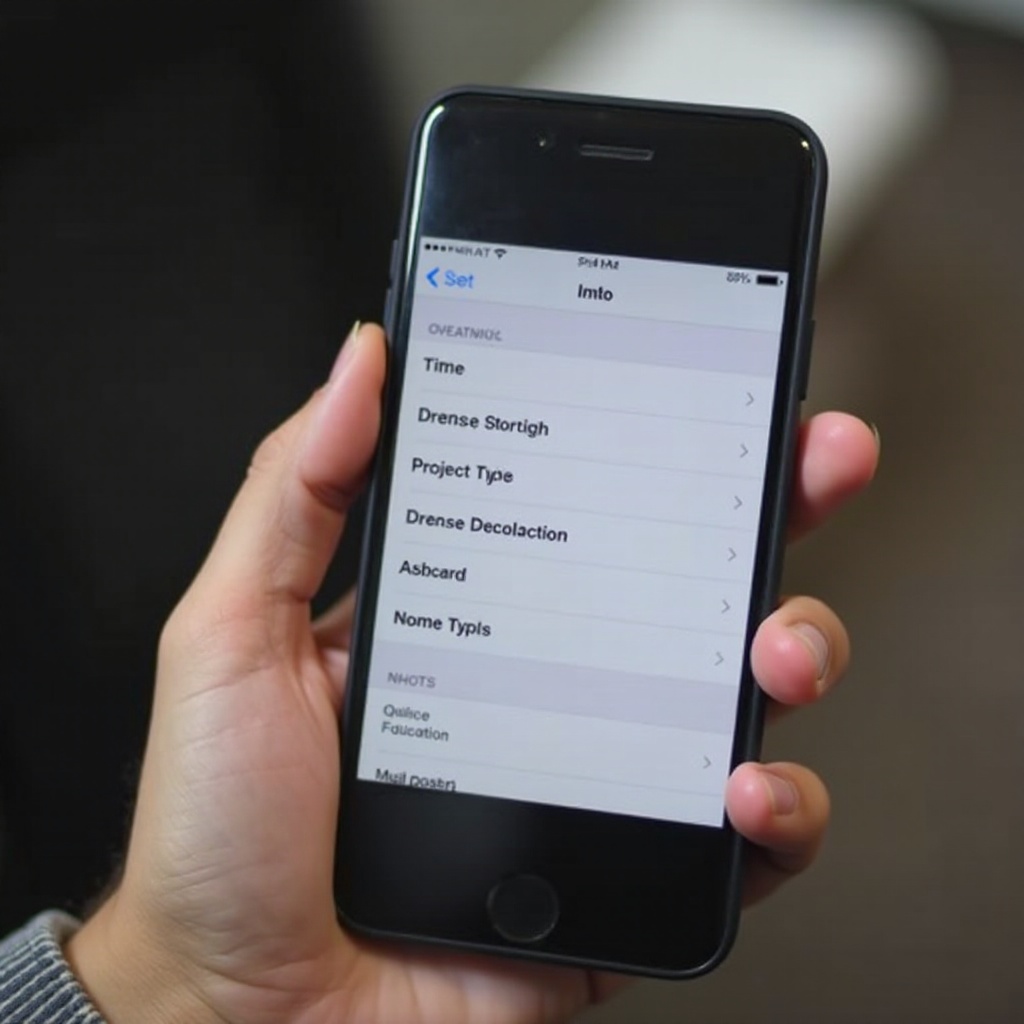
Methods to Disable Silent Mode on Popular Smartphones
Learning the methods to turn off silent mode on your specific device can make the process seamless. Let’s dive into the methods for iPhone, Android devices, and others.
Taking an iPhone Off Silent Mode
- Using the Side Switch: Find the switch on your iPhone’s left side. Slide it upward to deactivate silent mode, and watch for a notification on your screen confirming the switch.
- Via Control Center: Swipe from the top-right (or bottom on older models) and tap the bell icon to disable silent mode instantly.
Switching Off Silent Mode on Android Devices
- Using Volume Buttons: Pressing the volume-up button on an Android device is the simplest way to bring your phone back to audible mode. Adjust the slider to increase the ringtone volume.
- Sound Settings: Another method involves going to Settings > Sound > Volume. Here, adjust the ringtone volume slider to turn off silent mode.
Adjustments for Other Popular Phones (Samsung, Google Pixel, etc.)
The process varies slightly for different phone models:
– Samsung Galaxy: Pull down the Quick Settings panel and tap the sound icon to switch off silent mode.
– Google Pixel: Hold down the volume button and adjust the slider to the desired sound level, or navigate through Settings > Sound to make quick changes.
After learning these methods, discover how software features can aid in managing your device’s sound preferences effectively.
Using Software Features to Manage Silent Mode
Software tools expand your control over the silent mode, providing easy managerial options for sound settings.
Controlling Silent Mode with iOS Settings
- Do Not Disturb: In your iPhone’s Settings, you can use Do Not Disturb to manage when your device silences itself, allowing calls from select contacts.
- Focus Mode: This is available in iOS 15 and later versions; automation is quick based on set schedules or locations.
Managing Silent Mode via Android Interfaces
- Do Not Disturb: Similar to iOS, the Do Not Disturb setting on Android allows you to manage which notifications interrupt you. Set it up under Settings > Sound > Do Not Disturb.
- Automation Apps: Apps like Tasker allow you to automate sound settings based on time, location, or activity.
Third-party Apps for Automating Silent Mode
- IFTTT: Use this simple app to create tasks like ‘switch to silent mode when at work.
- Task Schedulers: Automate sound profiles easily with apps that transition your phone to different modes based on personalized criteria.
Next, we’ll explore customizing settings, enabling you to tailor your phone’s silent mode to meet your specific needs and priorities.
Customizing Your Silent Mode Settings
Customize your phone’s sound settings to ensure critical communications aren’t missed, even during silent mode.
Creating Exceptions for Emergency Calls
- Favorites Only: Both iOS and Android devices allow calls from favorite contacts through Do Not Disturb, ensuring important calls are never missed.
Adjusting Notification Settings for Silent Mode
- Custom Notifications: Ensure crucial alerts break through silent mode by tailoring app-specific notifications in your settings.
Utilizing Smart Personal Profiles
- Sound Profiles: Use apps like Sound Profile to enhance your phone’s adaptability with custom modes for different scenarios, such as work or leisure.
By incorporating personal customization, troubleshoot any persistent issues you may encounter with silent mode.
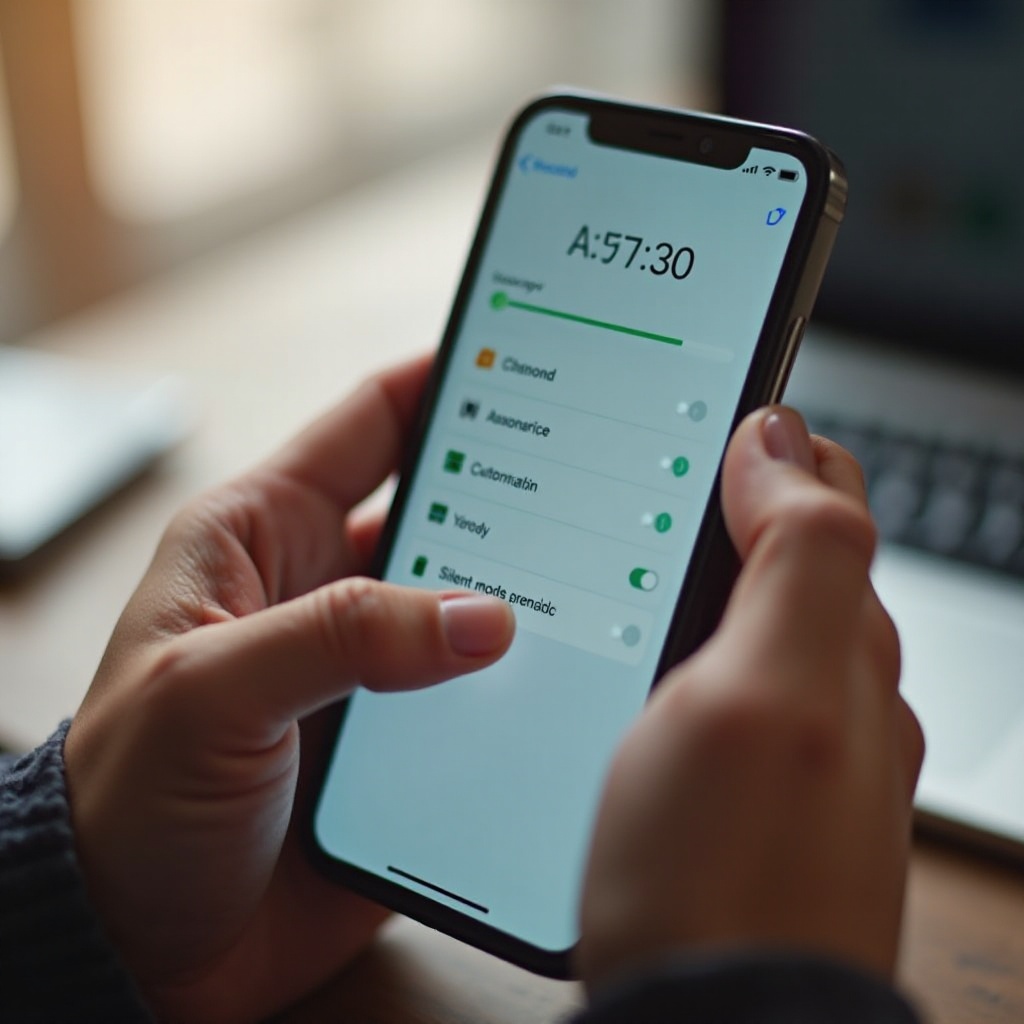
Troubleshooting Common Silent Mode Issues
When issues with silent mode arise, knowing how to troubleshoot can rapidly resolve them.
Fixing Persistent Silent Mode Problems
- Check for System Updates: Software glitches causing silent mode issues can often be solved with the latest system update.
- Restart Your Device: A simple restart can reset your phone and often resolves minor glitches affecting sound settings.
Understanding Software vs. Hardware Issues
- Test Hardware: Ensure that physical volume buttons aren’t stuck or jammed, and consult a technician if necessary.
- Software Fixes: Diagnostics apps can help identify and rectify software-related sound issues.
Resetting Default Sound Settings on Phones
- Reset All Settings: On iOS, navigate to General > Reset > Reset All Settings, and find similar options under Settings > System > Reset Options on Android.
The integration of sound management tips will assist in achieving optimal control over your phone’s audio functions.
Tips and Tricks for Better Sound Management on Phones
Effective sound management tips offer enhanced control over your phone’s audio environment.
Quick Access Shortcuts to Toggle Silent Mode
- Widgets: Android users can add sound widgets to quickly change settings from the home screen.
- Assistive Touch: Enable this function on iOS for easier sound option access.
Employing Assistive Technologies to Manage Sound Settings
- Voice Commands: Siri and Google Assistant allow you to switch modes effortlessly with voice commands.
Conclusion
Mastering silent mode controls enhances your phone’s usability, ensuring you’re always connected at crucial moments. By understanding device specifics, utilizing software efficiently, and troubleshooting effectively, you can manage your phone’s sound settings with ease.
Frequently Asked Questions
How do I know if my phone is stuck in silent mode?
Check the physical switch on iPhones or sound settings on Android. Confirm with a call or test notification.
Can silent mode be scheduled automatically on my phone?
Yes, through ‘Do Not Disturb’ or third-party apps, you can automate silent periods based on a schedule.
What should I do if my phone remains silent even after switching modes?
Ensure volume settings are up, check for any software updates, or reset settings to resolve persistent issues.