
Introduction
Effective cooling is key to maximizing your computer’s performance. Proper orientation of intake and exhaust fans is crucial in maintaining the optimal temperature inside your PC case. These fans have distinct roles in cooling: intake fans pull in cooler air, while exhaust fans push out warm air. Misidentifying these can disrupt airflow, resulting in overheating and reduced performance. In this guide, we will explore how to identify your fans’ orientation and set up your system for optimal airflow.
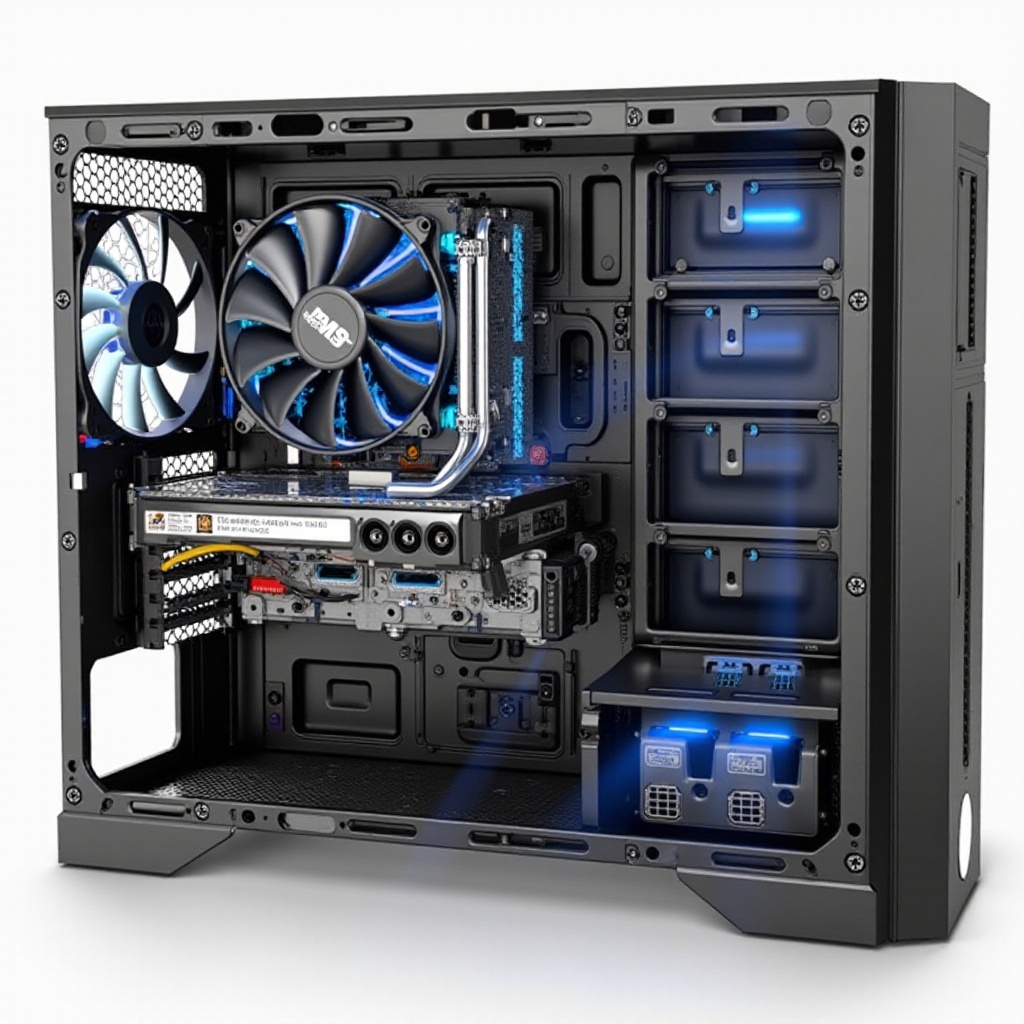
The Importance of Correct Fan Orientation
Fans act like the lungs of your computer, playing an essential role in managing system temperature. Proper fan orientation is vital for maintaining optimal performance and preventing overheating. Incorrectly oriented fans can disrupt airflow, leading to system instability and potentially causing hardware damage. Understanding how to properly configure intake and exhaust fans will help you avoid these problems and enhance your PC’s reliability and efficiency.
Understanding the Difference Between Intake and Exhaust Fans
Knowing the distinct roles of intake and exhaust fans is crucial.
-
Intake Fans: These fans bring cool air into the system, helping keep internal components cool. They are usually placed at the front or bottom of the case.
-
Exhaust Fans: These fans expel warm air from the system, avoiding heat accumulation. Typically, you’ll find them at the back or top of the case.
Grasping these fundamental differences will set a solid foundation for identifying and configuring your system’s fans efficiently.
Visual Clues to Identify Fan Direction
To accurately discern the fan’s direction, look for these visual clues:
-
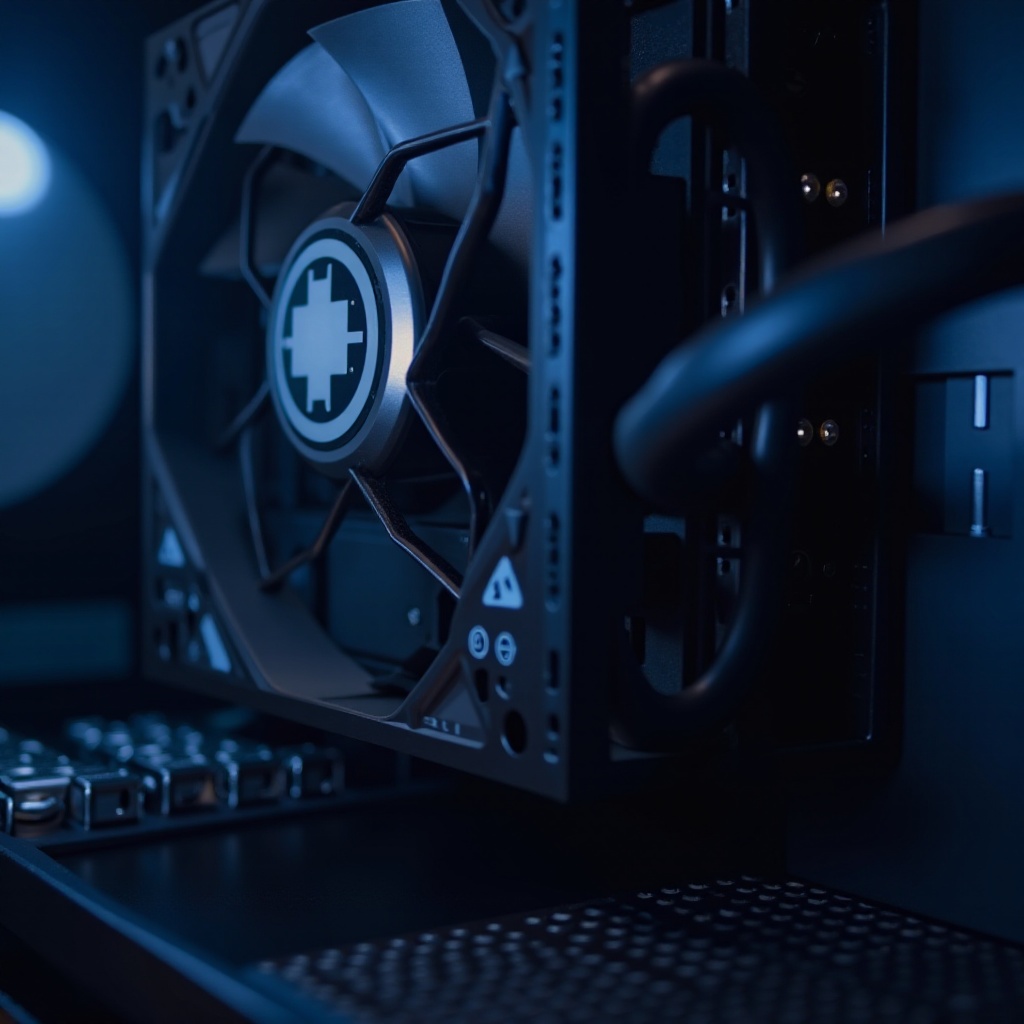
Checking for Manufacturer Labels: Often, fans come with labels or stickers indicating airflow direction, typically found on the fan casing.
-
Recognizing Airflow Arrows: Many fans have small arrows on their frame that show the direction of airflow and blade rotation.
-
Noting Fan Placement Within the Case: Intake fans are positioned to draw air into the case, commonly mounted at the front or bottom, while exhaust fans are set at the rear or top to release warm air.
These visual indicators are helpful when visually identifying fans. Next, let us explore practical methods to confirm fan types.
Testing Methods to Confirm Fan Type
Visual identification may suffice for some, but testing can offer greater certainty. Here are methods to verify fan types:
-
The Paper Test Technique: Hold a small piece of paper near the fan. If it’s drawn towards the fan, it’s an intake; if pushed away, it’s an exhaust.
-
Utilizing Software Tools: Some motherboard software and third-party apps can help determine fan direction and speed.
-
Using Physical Airflow Detectors: Tools like smoke sticks or digital airflow meters provide precise airflow analysis, assisting with more complex setups.
These testing methods add extra layers of assurance, enabling you to confidently recognize the role of each fan in your system.
Optimizing Your PC’s Airflow Setup
Once you identify fan types, optimization becomes the next step for effective cooling:
-
Creating a Balanced Airflow System: Strive for a balanced ratio of intake and exhaust fans to maintain optimal case pressure, minimizing dust while maximizing cooling.
-
Understanding Positive vs. Negative Pressure: Positive pressure occurs when intake airflow exceeds exhaust, reducing dust ingress. Negative pressure, more exhaust than intake, can lower temperatures but possibly introduce more dust.
-
Adjusting Fan Speeds for Performance: Use fan control software to modulate speed, ensuring efficient performance per fan’s role and system load.
A well-optimized airflow setup not only supports stable system performance but also ensures longevity and quieter operation. With optimization addressed, we turn to avoiding common pitfalls.
Common Pitfalls and How to Avoid Them
Several avoidable mistakes can impede your cooling setup. Make sure to choose the right type of fan—static pressure fans for restricted spaces with high resistance. Also, confirm compatibility with your case’s design and size to ensure airflow isn’t inhibited. Regular maintenance, including cleaning to prevent dust accumulation, will also help keep your system running efficiently.
Conclusion
Understanding and correctly identifying intake and exhaust fans is vital for the health and performance of your computer. This guide provides the essential knowledge and practical steps to help you evaluate and optimize your PC’s cooling configuration effectively.
Frequently Asked Questions
How can I tell if my fan is installed backwards?
Check for airflow arrows and perform the paper test. If air is blowing in the unintended direction, the fan might be installed backwards.
Do all fans have airflow direction arrows?
Most brands indicate airflow direction with arrows on the fan frame; however, not all do. Additional tests are advisable.
What happens if I use intake fans as exhaust?
Using intake fans as exhaust can imbalance airflow, leading to possible heat build-up and reduced cooling efficiency, impacting system performance and reliability.