
Setting up your gaming monitor correctly can significantly enhance your gaming experience. A monitor with the right settings can offer vibrant visuals, smoother motion, and faster response times, making it easier to spot enemies and navigate complex game environments. This guide will walk you through the optimal monitor settings for gaming, helping you gain the best performance from your setup.
Introduction
Optimizing your monitor settings can enhance every gaming session by ensuring clarity and precision in visuals. These adjustments cater to various game types and user preferences, transforming your monitor into a faithful ally in your gaming arsenal. Understanding the fundamentals of resolution, refresh rate, and beyond will not only give you an edge but enrich each gaming experience.
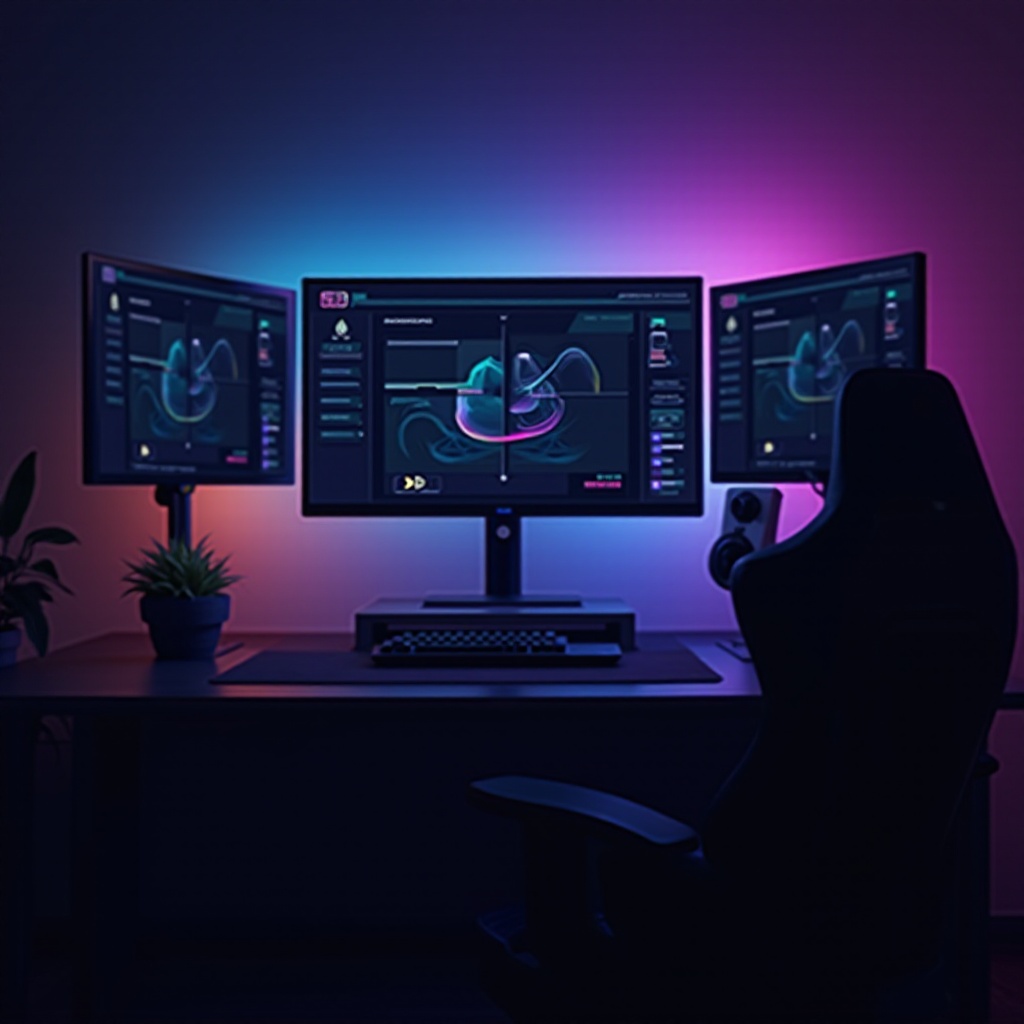
Understanding Your Monitor’s Basics
To tailor your monitor for gaming, first grasp the essentials that affect performance and visual quality. With a clear understanding of these basics, you’ll be better equipped to make adjustments that will make a real difference.
Resolution and Refresh Rate
Your gaming monitor’s resolution and refresh rate are key to delivering sharp, clear images.
-
Resolution: This is the number of pixels your screen can display. Higher resolutions offer sharper and more detailed images. While 1080p is sufficient for modern gaming, 1440p or even 4K can provide more detail if your system supports it.
-
Refresh Rate: This measures how many times your monitor updates with new information per second and is critical for smooth gameplay. A high refresh rate, such as 144Hz or higher, can significantly enhance the fluidity in games.
Importance of Response Time
Response time affects how swiftly your monitor displays changing images. Games, especially fast-paced ones like shooters or racing games, benefit from monitors that have a response time of 5ms or lower, minimizing motion blur and ghosting.
Panel Types: IPS vs. TN vs. VA
The type of panel your monitor uses affects your experience:
- IPS (In-Plane Switching): Offers excellent color and viewing angles, perfect for visually rich games.
- TN (Twisted Nematic): Provides the fastest response times, beneficial for competitive gaming despite less vibrant colors.
- VA (Vertical Alignment): Known for high contrast and good color output, ideal for immersive role-playing games.
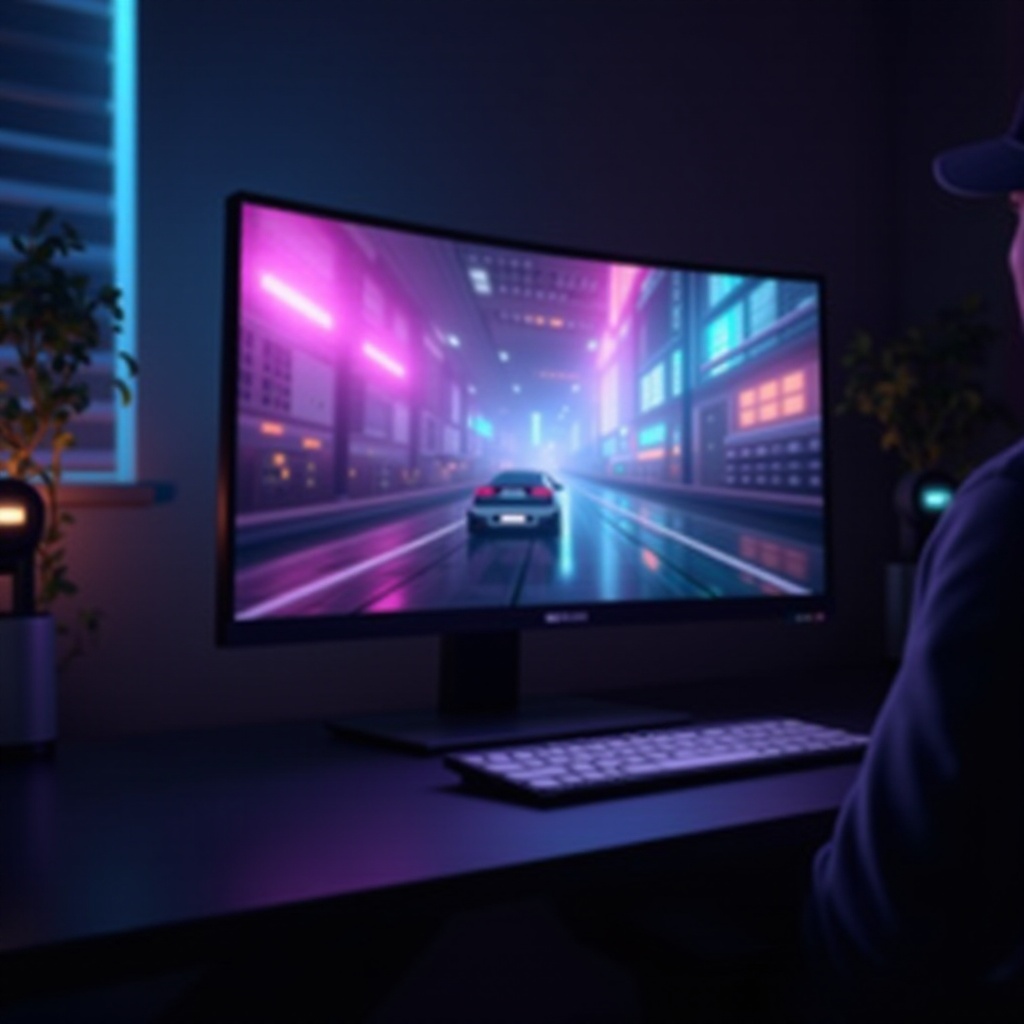
Optimizing Visual Quality for Gaming
After mastering the basics, enhancing visual quality is essential. This involves adjusting several settings to make sure you get the best image quality possible, no matter what game you’re playing.
Adjusting Brightness and Contrast
For balanced viewing:
- Brightness: Avoid eye strain by setting the brightness according to your room’s lighting conditions. Too bright can be harsh, too dim can obscure details.
- Contrast: Higher contrast levels make colors pop and enhance distinction between different shades, making the game more immersive.
Fine-Tuning Color Settings
Calibrate your monitor’s color settings to improve game visuals:
- Use built-in calibration tools or third-party software to adjust RGB (red, green, blue) levels for accurate color reproduction.
- Opt for manufacturer-provided color profiles for settings optimized to your display’s specifications.
Gamma and Sharpness Adjustments
- Gamma Settings: Control the brightness of midtones, affecting how environments appear.
- Sharpness: Aim for a balance where text and details are clear not overly crisp, avoiding visual artifacts.
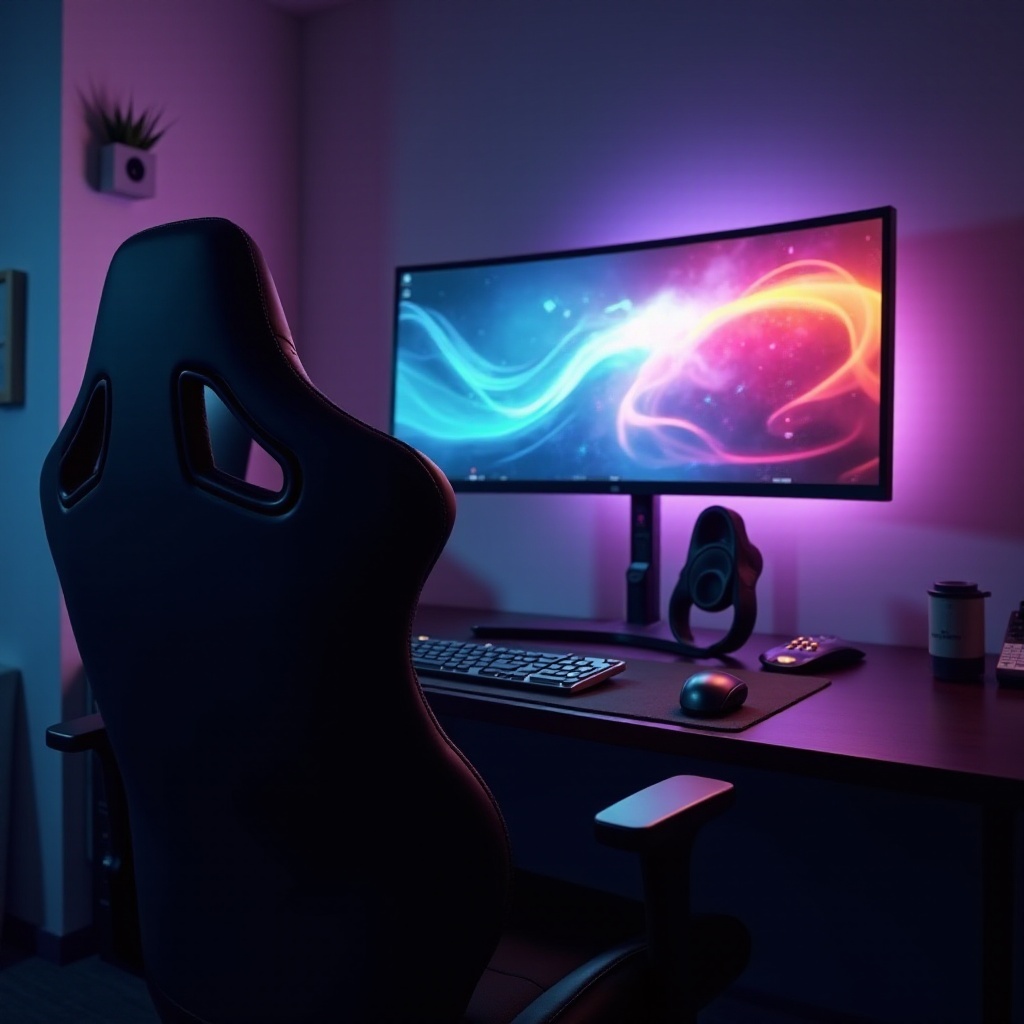
Leveraging Advanced Gaming Features
Using advanced features ensures you get the most out of your monitor’s capabilities. Implementing these technologies can powerfully affect visual performance and experience.
Utilizing G-Sync and FreeSync
Adaptive sync technologies like G-Sync (from NVIDIA) and FreeSync (from AMD) prevent screen tearing and stuttering by matching frame rates with refresh rates, leading to seamless gameplay. Enable these features in your display settings when your monitor and graphics card support them.
Dynamic Refresh Rate Technology
Dynamic refresh rate adjusts in real-time, balancing performance and quality by matching the monitor’s rate to the gameplay needs. Look for the ‘variable refresh rate’ on compatible monitors for this functionality.
Reducing Input Lag for Competitive Gaming
Input lag, the delay between inputs and screen response, can be minimized by:
- Enabling game mode on the monitor.
- Using adaptive sync setting.
- Disabling unnecessary enhancements that increase response times.
Customizing Settings for Different Game Genres
Each genre can benefit from different monitor settings. By adapting settings to the game’s nature, you’ll enhance not only the visual experience but your performance as well.
Best Settings for FPS Games
For first-person shooters:
- Raise brightness for visibility in shadows and quick movement detection.
- Ensure a low response time to swiftly react to opponents’ moves.
Optimal RPG and Strategy Game Setup
Role-playing and strategy games benefit from enhanced color and detail:
- Adjust gamma for a clear and atmospheric experience.
- Use IPS panels to take advantage of superior color reproduction and depth.
Adjustments for Racing Simulations
For racing games:
- Use high refresh rates for smooth, lag-free high-speed motion.
- Optimize contrast for detailed environments and clear opponents.
Troubleshooting Common Display Issues
Even with optimal settings, you might encounter display issues. Knowing how to address these concerns will help maintain the quality of your gaming experience.
Resolving Ghosting and Tearing
To fix ghosting and tearing, common problems in high-paced games:
- Enable or adjust sync technologies like G-Sync or FreeSync.
Fixing Flickering Screens
Flickering can often be fixed by updating graphics drivers and confirming the correct refresh rate settings.
When to Seek Professional Help
Persistent issues despite adjustments may require consultation with a professional or your monitor’s support service, particularly if hardware defects are suspected.
Conclusion
Optimizing your monitor settings elevates your gaming to a new level. Each adjustment discussed caters to different needs and game types, offering an enriched experience increasingly closer to perfection. Continually customizing your setup based on these principles ensures that your gaming remains as enjoyable and effective as possible.
Frequently Asked Questions
What is the best refresh rate for gaming?
A refresh rate of 144Hz is ideal for most gamers, offering smooth and responsive gameplay.
How do I reduce input lag on my monitor?
Reduce input lag by enabling game mode, using adaptive sync technologies, and disabling post-processing effects.
Can monitor settings impact gaming performance?
Absolutely. Proper monitor settings enhance visibility, reduce lag, and ensure smoother visuals, improving gaming performance.