
Introduction
Wireless network adapters are essential tools for optimizing your laptop’s internet connectivity. Whether for work, streaming, or gaming, the right adapter ensures a stable connection. This guide explores important features and highlights the best adapters in 2024 to help you choose wisely.
Understanding Wireless Network Adapters
What is a Wireless Network Adapter?
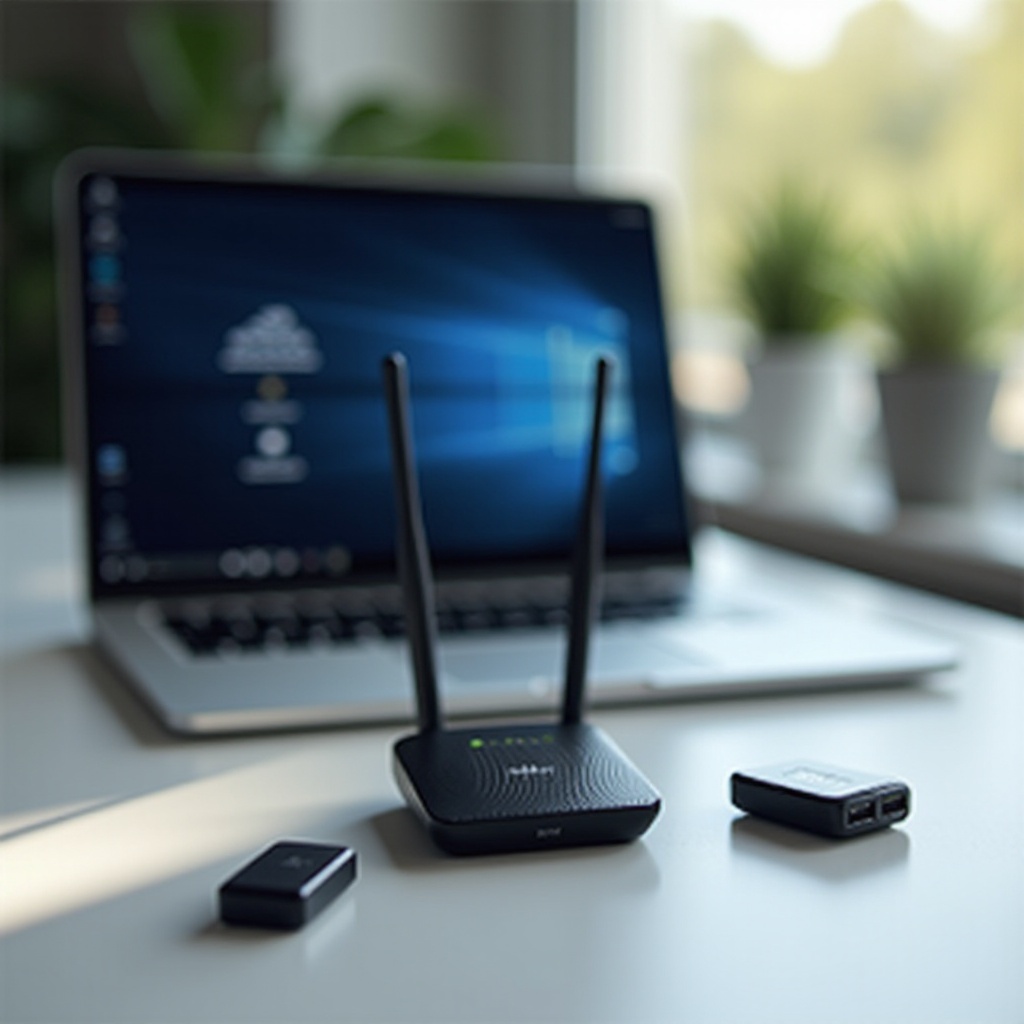
A wireless network adapter connects your laptop to a Wi-Fi network, facilitating internet access. This device can be built into your laptop or attached externally. External adapters are typically USB devices, which are easy to install and use.
Types of Wireless Network Adapters
Wireless network adapters come in two primary forms: internal and external. Internal adapters are integrated into the laptop, often sufficient for general use. However, they might not support the latest standards, which can impede performance. External adapters generally offer enhanced features such as greater range, faster speeds, and the ability to connect using the latest Wi-Fi standards, making them ideal for more demanding users.
Understanding these aspects sets the stage for choosing an adapter that fits your requirements. The next step is exploring specific features you should consider.
Key Factors to Consider When Choosing a Wireless Adapter
Selecting the best wireless adapter involves weighing several critical features that cater to your specific needs.
Connectivity Standards and Speed
Seek adapters that support modern Wi-Fi standards like Wi-Fi 6, which promises faster speeds and improved network efficiency. This new standard accommodates higher bandwidth demands and supports multiple devices more effectively.
Range and Compatibility
For expansive homes or workspaces, choose adapters designed for strong, consistent connections over larger areas. Models with high-gain antennas amplify signal strength. Additionally, confirming compatibility with your laptop’s operating system is crucial for seamless operation.
USB vs. Internal Adapters
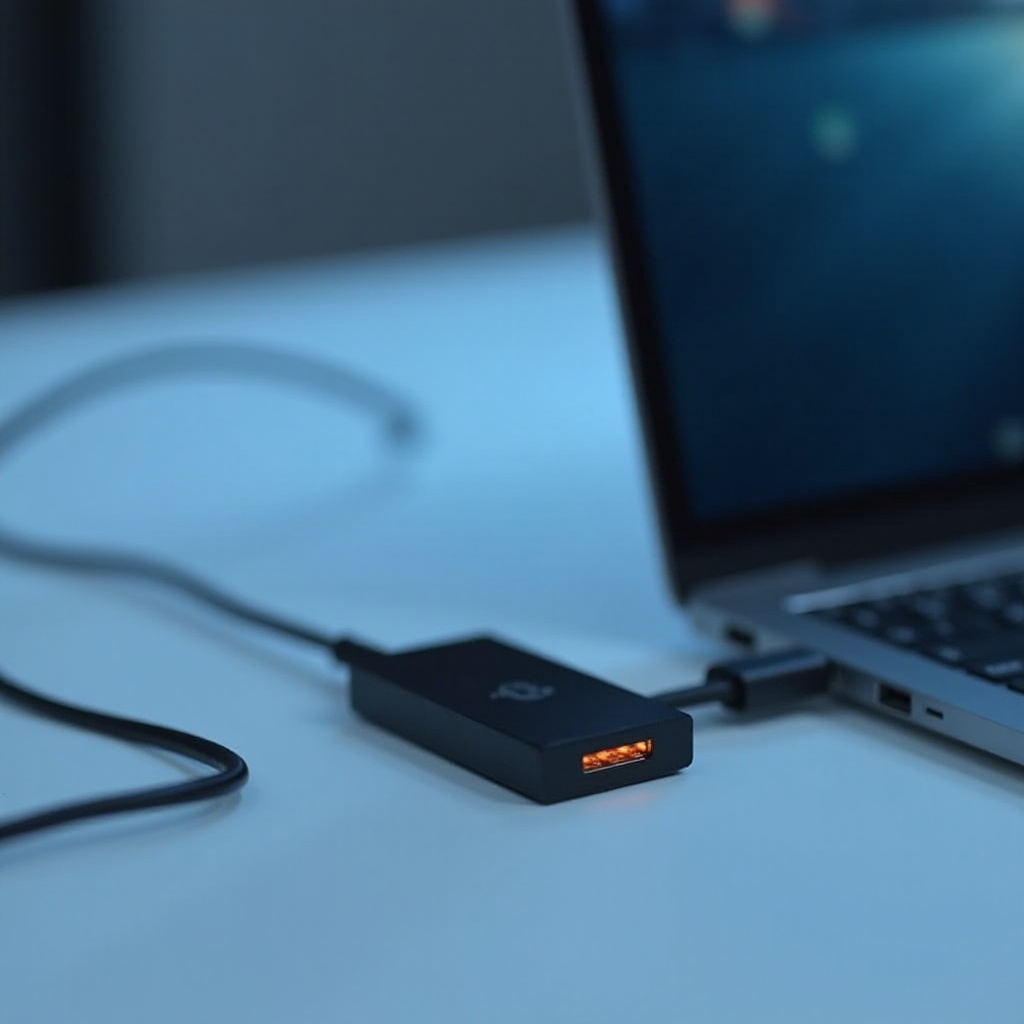
External USB adapters offer greater flexibility, especially if your laptop’s built-in adapter is underperforming. These often provide superior speed and range, with the added benefit of plug-and-play convenience. Internal adapters are less cumbersome but might lack cutting-edge capabilities required for demanding applications.
Having assessed these considerations, let’s move to the next section where we examine top-ranked wireless network adapters available this year.
Top Wireless Network Adapters for Laptops in 2024
Choosing a quality wireless adapter involves many facets beyond mere specifications. Real user experiences and expert opinions are instrumental.
List and Review of High-Performance Adapters
- TP-Link Archer T4U Plus: Known for dual-band capability and robust antennas that offer excellent range with speeds reaching up to 1200Mbps.
- Netgear Nighthawk AC1900: Offers high-speed support with an exceptional range, perfect for gaming and streaming enthusiasts.
- Asus USB-AC68: Compact yet powerful, this adapter supports the latest Wi-Fi 6 standard, ensuring stable connections wherever you go.
Comparison Based on Features and Pricing
While the TP-Link Archer T4U offers dependable performance at a competitive price, the Netgear Nighthawk AC1900 provides premium speeds and features at a higher cost. The Asus USB-AC68 is ideal for those requiring portability and cutting-edge standards, with a mid-range price point.
Each choice involves balancing performance needs against budget. Installing and setting up these devices effectively further maximizes their benefits, as covered in the next section.

Installation and Setup Tips
After selecting the ideal adapter, correct installation is vital to leverage its full potential.
Step-by-Step Installation Guide
- Insert the adapter into an available USB port.
- Install necessary drivers, often found on a provided CD or downloaded from the manufacturer’s website.
- Connect to the desired Wi-Fi network using your laptop’s network settings.
Common Setup Issues and Troubleshooting
If you encounter setup problems:
– Ensure the adapter is correctly plugged in. Repositioning can sometimes stabilize the connection.
– Verify compatibility with your laptop’s specifications.
– Regularly update drivers to maintain optimal performance and security.
Proper installation and awareness of potential problems ensure your chosen adapter functions correctly. To wrap up, considering individual needs and technical insights will guide a satisfying purchase.
Conclusion
Choosing the right wireless network adapter significantly elevates your online experience, especially in our increasingly digital lifestyle. By understanding key features, reviewing top-rated products, and ensuring a proper installation, you can make informed decisions. Investing in a suitable adapter not only enhances connectivity but also offers long-term digital convenience and effectiveness.
Frequently Asked Questions
How do I know if I need an external wireless adapter?
If you experience slow speeds or weak connectivity across rooms, an external adapter can improve your internet quality significantly.
Can a wireless network adapter improve my internet speed?
Yes, upgrading to an adapter that supports the latest standards can enhance speed and efficiency, particularly with Wi-Fi 6.
What should I do if my wireless adapter is not working properly?
Ensure it is properly connected, check for driver updates, and verify compatibility. Manufacturer support can provide additional solutions.